Getting started
Talkback has two parts: a Max for Live device that runs inside Ableton, and an MCP server that connects your LLM to the device. You need both.
How talkback works
Talkback is a bridge between your AI assistant and Ableton Live. It uses a standard called MCP (Model Context Protocol) — a shared language that lets AI tools talk to other software on your computer.
The Max for Live device reads your Ableton session, and the MCP server passes that information to your AI so it can answer questions and make changes.

Requirements
- Ableton Live 11 or later (with Max for Live)
- Node.js 18+ - Download Node.js (pick the LTS version)
- An MCP-compatible LLM client running on your local machine - Claude Desktop, Claude Code, Cursor, etc.
Once these are installed, you're ready to start.
Installation
Follow the steps below to get up and running.
Download the Max for Live device

talkback-bridge-v1.0


MCP: Connected
- Drag the downloaded
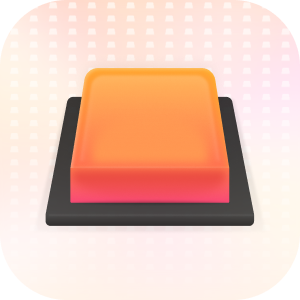
talkback-bridge.amxdfile onto your master/main track in Ableton - Make sure the device is toggled on and the MCP button is pressed - the button turns orange when the server is running
The device needs to be on the master/main track if you want it to read the full session state across all tracks.
Add the MCP server
Talkback uses the Model Context Protocol to connect your AI to Ableton. It runs locally on your machine — no cloud server involved.
Important: Talkback requires a desktop MCP client like Claude Desktop, Claude Code, or Cursor. It does not work with claude.ai in the browser — web-based AI chat doesn't support local MCP servers yet.
Quick install Recommended
The fastest way to get set up. Open Terminal and paste:
curl -fsSL https://talkback.createwcare.com/install.sh | bash
This checks your Node.js version, installs talkback-mcp, and configures Claude Desktop automatically. Requires Node.js 18+ — download the LTS version if you don't have it.
Already in an AI agent?
If you're already using Claude Code, Cursor, Windsurf, or another AI coding tool, your agent can set up talkback for you:
npx skills add jmedure/talkback-mcp
Then just ask: "Help me set up talkback." Your agent will check your environment, write the config, and walk you through the rest.
Claude Code
claude mcp add --transport stdio talkback-mcp -- npx -y talkback-mcp
Manual setup
If you prefer to configure things yourself, or use a different MCP client:
Claude Desktop — manual config
Other MCP clients
Any client that supports the Model Context Protocol can use talkback.
Cursor
Windsurf
Other / auto-detect
Start chatting
- Open Ableton Live with the talkback device active on your master track
- Open your LLM client — the MCP server starts automatically
- Start asking questions
Try something like:
- •“What's happening in my session right now?”
- •“My bass sounds too boomy, can you help?”
- •“Can you check my mix for any obvious issues?”
Verify your setup
If everything is working, you should see:
- In Ableton: The talkback bridge device MCP connection button is orange, the device is active is on your master track.
- In your LLM client: Look for
talkback-mcpin the available tools. In Claude Desktop, check your connectors. You should seeget_session_contextandanalyze_mixlisted. In Claude Code, runclaude mcp listand check thattalkback-mcpappears.- See the full list of available tools.
- Test it: Ask your LLM "What's in my Ableton session right now?" If it responds with your track names, volumes, and devices, you're all set.
Something not right?
- No orange button in Ableton? The MCP server might not be running. Make sure your LLM client is open — the server starts when the client launches.
talkback-mcpnot showing up in your LLM's tools, connectors, or mcp list? Restart your LLM client. Claude Desktop requires a full restart after config changes.- Tools listed but "bridge not connected"? The M4L device can't reach the server. Check that the device is on the master track and toggled on. See troubleshooting for port conflicts.
How it connects
The Max for Live device and MCP server communicate over a local WebSocket connection on port 8765. The MCP server then exposes your session to your LLM via the Model Context Protocol.
Ableton Live ↔ M4L Device ↔ WebSocket (localhost:8765) ↔ MCP Server ↔ Your LLM
No data leaves your machine unless your LLM sends it to its own API. The connection is entirely local.
Updating
The MCP server updates frequently. If you use the npx configuration above, you'll always get the latest version automatically. You can also pin a specific version:
{
  "args": ["talkback-mcp@0.1.2"]
}
The Max for Live device updates less often. The server will warn you if your bridge is outdated — you can also check by asking your AI to run get_bridge_health. To update:
- Download the latest bridge
- Delete the old device from your master track
- Drag the new
.amxdonto your master track - Toggle the device on
Check the changelog for what's new in each release. Follow me on X (twitter) for regular updates.
